
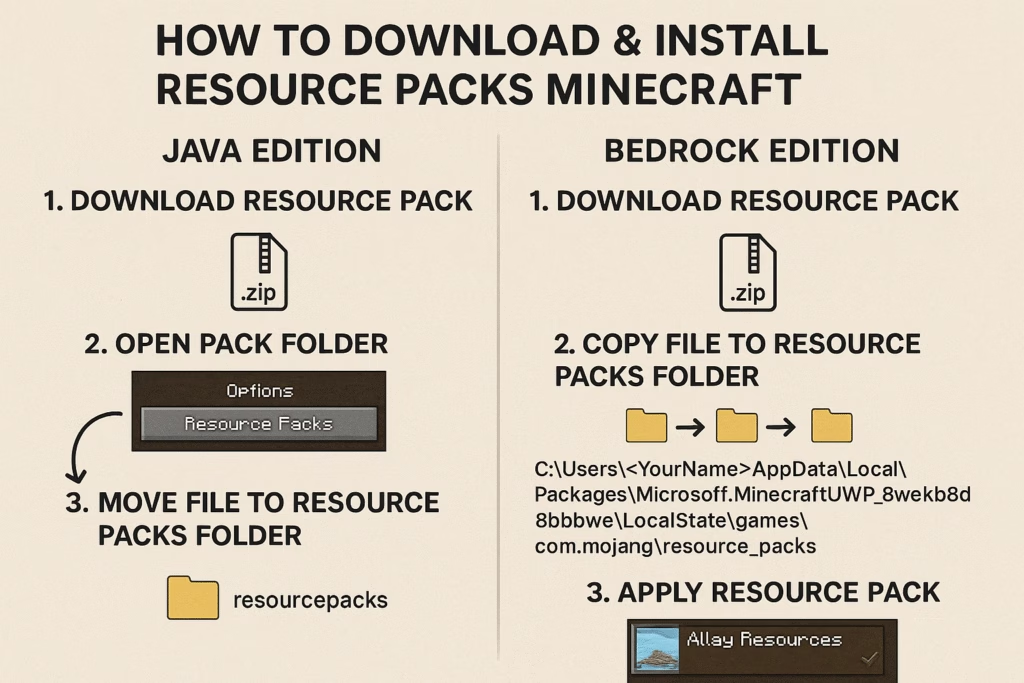
Here’s a step-by-step guide to download and install Resource Packs in Minecraft (both Java and Bedrock editions). I’ll break it down clearly:
Minecraft Java Edition
Step 1: Download a Resource Pack
- Go to a trusted Minecraft resource pack website.
- Find a resource pack you like and download it.
- It will usually download as a
.zipfile. Do not unzip it.
- It will usually download as a
Step 2: Locate the Minecraft Resource Pack Folder
- Open Minecraft.
- Go to Options → Resource Packs → Open Pack Folder.
- This will open the folder where you need to place the
.zipfile.
- This will open the folder where you need to place the
Step 3: Install the Resource Pack
- Move or copy the downloaded
.zipresource pack into theresourcepacksfolder. - Go back to Minecraft → Options → Resource Packs.
- You should see your pack on the left. Click the arrow → to move it to the right to enable it.
- Click Done. Minecraft will load the textures.
Minecraft Bedrock Edition (Windows 10, PE, Consoles)
Step 1: Download a Resource Pack
- Use trusted sites.
- Download the
.mcpackor.zipfile.
Step 2: Install the Resource Pack
- .mcpack files:
- Double-click the file. Minecraft will automatically open and import it.
- You’ll see a notification “Successfully imported”.
- .zip files:
- Copy the
.zipinto:C:\Users\<YourName>\AppData\Local\Packages\Microsoft.MinecraftUWP_8wekyb3d8bbwe\LocalState\games\com.mojang\resource_packs - Open Minecraft → Settings → Global Resources → enable the pack.
- Copy the
Step 3: Apply the Resource Pack
- Open your world → Edit → Resource Packs.
- Move the pack from Available to Active.
- Click Play. The textures will change in-game.
✅ Tips
- Always download packs from trusted sources.
- Some packs require a specific Minecraft version.
- Resource packs only change visuals, not gameplay mechanics.


